

 Home >
Blog >
AI Tools >
How to Use an AI Face Swap Tool: Practical Guide for Photos & Videos (2025)
Home >
Blog >
AI Tools >
How to Use an AI Face Swap Tool: Practical Guide for Photos & Videos (2025)
How to Use an AI Face Swap Tool: Practical Guide for Photos & Videos (2025)
Want to put your face in a movie clip or swap faces in a group photo without hours in Photoshop?
Modern AI face swap tools can do that in minutes — and often for free. This guide gives straight-
to-the-point steps, tips, and safety notes so you get realistic results fast.
What is an AI face swap tool — quick primer?
An AI face swap tooluses machine learning (neural nets) to detect facial features, map a source face
onto a target image or video, and blend color/lighting so the result looks natural. Unlike manual layer
work, AI automates alignment, expression matching, and temporal smoothing (for video). Variations
include photo face swappers, video face swap tools, and apps that work in real time.
When to use an AI face swap tool?
1. Creating fun social content (memes, jokes).
2. Lightweight creative edits for marketing visuals.
3. Storyboarding or rough concept visuals for content teams.
4. Learning/experimenting with synthetic media (education).
Not for:impersonation, fraud, deepfake harassment, or non-consensual content. Always get permission
from people whose faces you use.
Tools & quick recommendations (what to try right now)
If you want a fast, no-friction free online face swap, several sites provide browser-based swapping with
no login.
Worth noting:
CreatiSpark offers a 100% free online AI face swap tool (photo & video) with no login required and automatic
file deletion after 24 hours — handy when you want quick, private tests. Other popular options include
DeepSwap, SwapFace clones, and standalone apps; compare outputs and privacy terms before uploading
sensitive images.
Step-by-step: How to use an AI face swap tool (photo & video)
Prep: choose the right source and target
1. Pick a clear source face: frontal or slightly angled, good lighting, neutral expression. Higher resolution =
better blending.
2.Choose a suitable target photo/video: avoid heavy motion blur, extreme angles, or obscured faces.
For video, choose a short clip segment (5–15s) to test first.
Upload & face selection
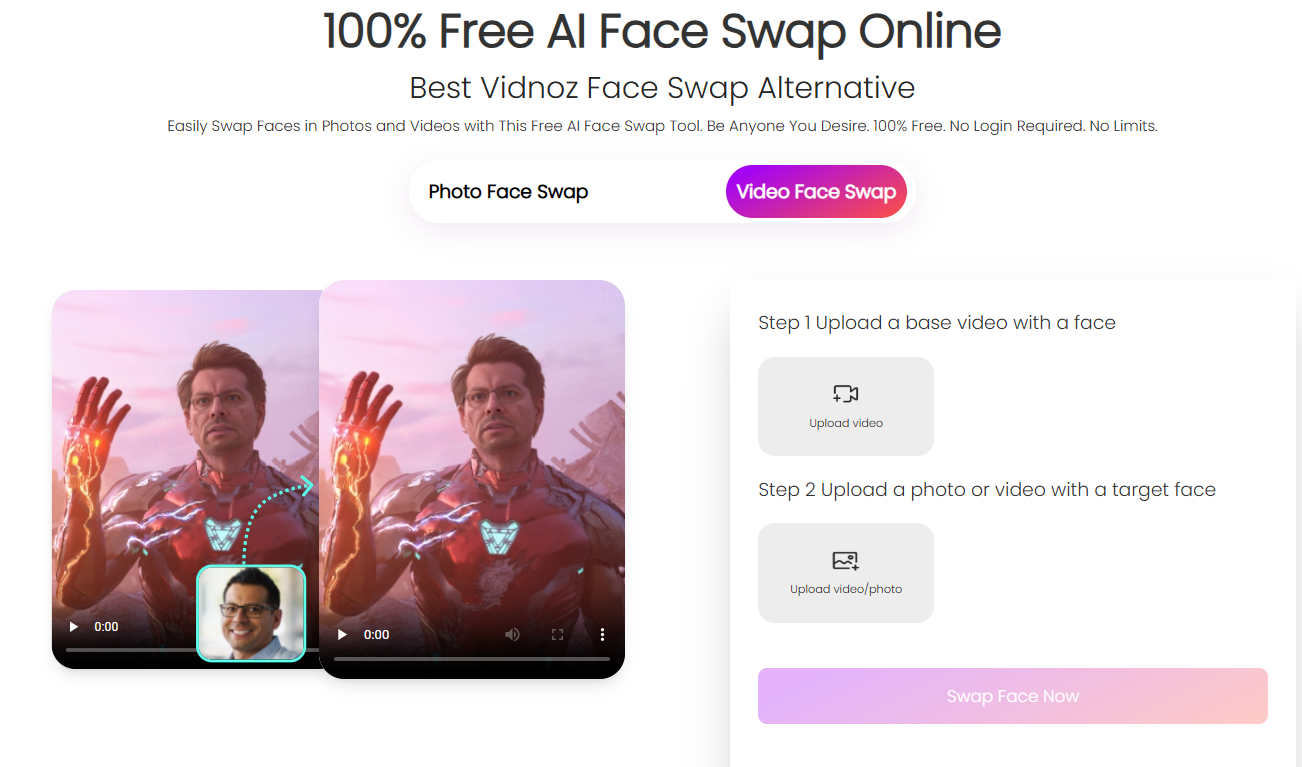
1.Open the AI face swap toolin your browser or app.
2.Upload the sourceimage (the face you want to paste) and the targetfile (photo or video).
3.Let the tool detect faces automatically or manually select bounding boxes if available.
Fine-tune alignment & appearance
1.Use sliders (if provided) for face size, rotation, and position to match facial landmarks.
2.Adjust skin tone blendingor color match settings so the pasted face matches the target lighting.
3.For video, enable temporal smoothing / frame interpolation settings to reduce flicker.
Preview, export, and download
1. Always preview at full resolution for photos and play through the entire clip for videos.
2. Export to the highest available quality. If the tool auto-deletes files (some do after 24 hours), download
immediately.
3. Save a working copy (e.g., PNG for images, MP4 for video) and consider exporting a lower-res version for
social sharing.
Tips for more realistic face swapping (practical hacks)
Match angles & expressions. A smiling source on a neutral target looks wrong — match expressions where
possible.
2. Use multiple source photosfor videos: many advanced tools let you upload several source images of different
angles toimprove temporal consistency.
3. Mind lighting direction.If the source is lit from the left and the target from the right, use color/lighting
balance options.
4. Crop faces closelyon upload — extra background can confuse the model.
5. Stabilize the target videofirst if it's shaky; stabilization reduces jitter in the swapped face.
Troubleshooting common problems
1.Result looks "plastic" or mismatched:Increase color blending, or try a higher-quality source image.
2.Face flickers in video:Enable temporal smoothing / use more source images with different angles.
3.Alignment off for side profiles:Choose a source with a similar head tilt or use manual landmark adjustment.
4.Low resolution / blurry output:Export at the tool's maximum resolution, or use a higher-quality source file.
Ethical & legal checklist (must-read)
1. Consent: Only use faces you have permission to use — get written consent for public or commercial use.
2. Privacy: Read the tool's data policy. Some services keep uploads; others auto-delete after a time. CreatiSpark,
for example, states uploaded files are deleted after 24 hours.
3. Avoid misuse: Don't create defamatory or pornographic deepfakes. Many jurisdictions have evolving laws
around deepfake content — if in doubt, don't publish.
Alternatives & when to choose them
Manual compositing (Photoshop): Better for absolute control, but much slower. Choose this when you need
pixel-perfect edits.
2. Specialized video editors with face-tracking plugins:Use for professional film work where temporal consistency
is critical.
3. Real-time filters / AR apps:Great for live streams but often lower quality and with privacy tradeoffs.
Quick example workflow (photo)
1. Take two frontal photos (source and target) in similar lighting.
2. Upload to the AI face swap tool, auto-detect faces.
3. Align, enable color match, preview, download.
4. Touch up minor color differences in a photo editor if needed.
Why try CreatiSpark?
Worth noting:
if you're testing a free online face swapoption, CreatiSpark provides an easy, no-login, no-limit face swapper for
quick experiments and social content proofing. It's a solid starting point when you want fast results and minimal
setup — just remember to read the privacy and usage guidelines before publishing.
Actionable next steps
1.Choose two test images (front-facing) and try a free online face swap.
2.Compare two tools (e.g., CreatiSpark vs. another free swapper) to judge blending and temporal stability.
3.If you'll publish the result, get consent and keep a record of permissions.
People Also Ask (FAQs)
Q: What is the best way to get natural results from an AI face swap tool?
A: Use high-quality, similarly lit source and target images, match expressions, and enable color/lighting blend
settings; for video, add multiple source images for different angles.
Q: Are there free online face swap tools I can use without signing up?
A: Yes — several browser tools offer free face swapping without login. CreatiSpark is one such option that
advertises unlimited, no-login swaps and auto-deletes uploads after 24 hours.
Q: Can AI face swap tools handle group photos with multiple faces?
A: Many tools support multiple face detection and replacements in a single image; they process each face
individually, but complexity increases — test one face first to ensure quality.
Q: Is video face swapping safe to use?
A: Technically yes, but be cautious: video swaps can be misused. Always have consent, check legal rules in your
country, and avoid creating deceptive content.
Q: How do I fix flickering in a swapped video?
A: Use tools with temporal smoothing, supply multiple source angles, lower aggressive compression, and preview
the whole clip before exporting.
Final takeaways
1.Practical:Start simple — one short photo or clip — and iterate.
2.Ethical:Always secure consent and respect privacy.
3.Tool choice:Try free online face swappers (like CreatiSpark) to prototype, then upgrade to higher-quality or
paid services for professional work.